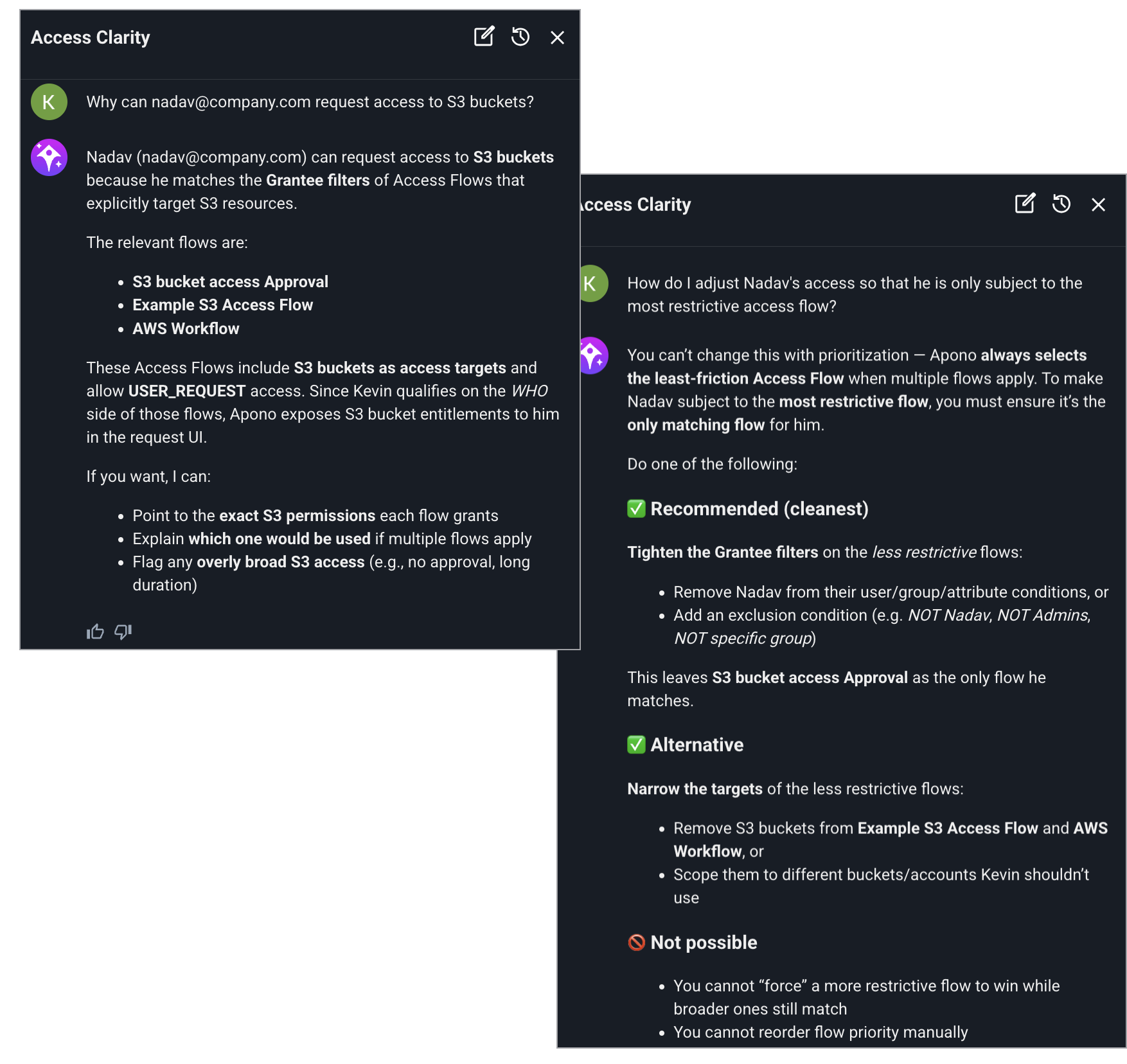
Access Clarity conversations
Access Clarity conversations
 (Access Clarity icon). The **Access Clarity** panel opens.
2. Ask an access eligibility or policy behavior question. Access Clarity responds.
3. (Optional) Provide feedback on Access Clarity responses:
* Click
(Access Clarity icon). The **Access Clarity** panel opens.
2. Ask an access eligibility or policy behavior question. Access Clarity responds.
3. (Optional) Provide feedback on Access Clarity responses:
* Click  (thumbs up icon) if the explanation was helpful.
* Click
(thumbs up icon) if the explanation was helpful.
* Click  (thumbs down icon) and add a comment if the explanation was unhelpful.
After starting a conversation, you can navigate between pages while Access Clarity remains open. You can also close and reopen it from any page.
***
### Conversation Guidance
Use the following guidance to get the most accurate, relevant, and detailed responses from Access Clarity.
(thumbs down icon) and add a comment if the explanation was unhelpful.
After starting a conversation, you can navigate between pages while Access Clarity remains open. You can also close and reopen it from any page.
***
### Conversation Guidance
Use the following guidance to get the most accurate, relevant, and detailed responses from Access Clarity.
| Recommendation | Details |
|---|---|
| Be specific. | Include resource names, user names, and environments in your questions. |
| Ask follow-up questions. | Narrow down results with questions such as:
|
(Access Clarity icon). The **Access Clarity** panel opens.
2. Click  (chat history icon). The **Select Conversation** dropdown menu appears, displaying a list of previous conversations.
3. (Optional) In the **Search...** text field, enter the partial or full name of the conversation to filter the list of conversations.
4. Select the conversation. The dropdown menu disappears and the selected conversation is displayed.
5. (Optional) Resume the conversation.
{% hint style="info" %}
When resuming a conversation, Access Clarity only uses context from the active conversation and does not consider information from other conversations.
{% endhint %}
***
### Delete a conversation
{% hint style="danger" %}
Deleting a conversation is **permanent and irreversible**.
{% endhint %}
Follow these steps to delete a conversation:
1. From any [Apono page](https://app.apono.io/), in the top-right corner, click (Access Clarity icon). The **Access Clarity** panel opens.
2. Click (chat history icon). The **Select Conversation** dropdown menu appears, displaying a list of previous conversations.
3. (Optional) In the **Search...** text field, enter the partial or full name of the conversation to filter the list of conversations.
4. Click
(chat history icon). The **Select Conversation** dropdown menu appears, displaying a list of previous conversations.
3. (Optional) In the **Search...** text field, enter the partial or full name of the conversation to filter the list of conversations.
4. Select the conversation. The dropdown menu disappears and the selected conversation is displayed.
5. (Optional) Resume the conversation.
{% hint style="info" %}
When resuming a conversation, Access Clarity only uses context from the active conversation and does not consider information from other conversations.
{% endhint %}
***
### Delete a conversation
{% hint style="danger" %}
Deleting a conversation is **permanent and irreversible**.
{% endhint %}
Follow these steps to delete a conversation:
1. From any [Apono page](https://app.apono.io/), in the top-right corner, click (Access Clarity icon). The **Access Clarity** panel opens.
2. Click (chat history icon). The **Select Conversation** dropdown menu appears, displaying a list of previous conversations.
3. (Optional) In the **Search...** text field, enter the partial or full name of the conversation to filter the list of conversations.
4. Click  (trash can icon) next to the conversation to delete. A confirmation pop-up window appears.
5. Click **Yes**.
---
# Agent Instructions
This documentation is published with GitBook. GitBook is the documentation platform designed so that both humans and AI agents can read, navigate, and reason over technical content effectively. Learn more at gitbook.com.
## Querying This Documentation
If you need additional information that is not directly available in this page, you can query the documentation by asking a question.
Perform an HTTP GET request on the following URL with the `ask` and `goal` query parameters:
```
GET https://docs.apono.io/docs/access-flows/access-clarity.md?ask=
(trash can icon) next to the conversation to delete. A confirmation pop-up window appears.
5. Click **Yes**.
---
# Agent Instructions
This documentation is published with GitBook. GitBook is the documentation platform designed so that both humans and AI agents can read, navigate, and reason over technical content effectively. Learn more at gitbook.com.
## Querying This Documentation
If you need additional information that is not directly available in this page, you can query the documentation by asking a question.
Perform an HTTP GET request on the following URL with the `ask` and `goal` query parameters:
```
GET https://docs.apono.io/docs/access-flows/access-clarity.md?ask=