> For the complete documentation index, see [llms.txt](https://docs.apono.io/llms.txt). Markdown versions of documentation pages are available by appending `.md` to page URLs; this page is available as [Markdown](https://docs.apono.io/docs/access-requests-and-approvals/web-portal/approving-access-with-web-portal.md).

# Approving Access with the Web Portal

Using the Apono web portal to approve or reject requests

The Apono web portal enables you to reject or approve a request to access services, databases, and applications that are centrally managed through Apono.

***

### Reject a request

<figure><img src="https://1094436629-files.gitbook.io/~/files/v0/b/gitbook-x-prod.appspot.com/o/spaces%2Fv6MBfUGvblSdAz31yJXm%2Fuploads%2Fgit-blob-eb044d4014cf8691f893eaac0c03055306cd3ccf%2Fportal-request-reject.png?alt=media" alt=""><figcaption><p>My Tasks page</p></figcaption></figure>

Follow these steps to reject a request:

1. On the [**My Tasks**](https://portal.apono.io/tasks) page, click the **Pending Approval** tab. A list of requests requiring your review appears.
2. Click the row of the open request. The request details panel opens for you to review the details of the request.
3. Click **Reject**. The **Please provide a reason for rejection** popup window appears.
4. Enter a **Reason**. The rejection reason must be less than **124** characters.

{% hint style="info" %}
If the [**Require Approve Reason**](/docs/access-flows/creating-access-flows-in-apono/self-serve-access-flows.md#enable-settings) setting has been enabled for the access flow, you will be required to enter a reason.
{% endhint %}

5. Click **Reject Request**. The requester will see the rejected request on the [**Closed Requests**](https://portal.apono.io/requests/closed) tab.

***

### Approve a request

{% hint style="success" icon="lightbulb" %}
If a pending request is blocked because the assigned approver is unavailable, an Admin can [force approve](/docs/audits-and-reports/requests-audit/activity.md#force-approve-a-pending-request) the request from the **Activity** page.

Force approval bypasses the configured approval flow and is recorded in the request timeline.
{% endhint %}

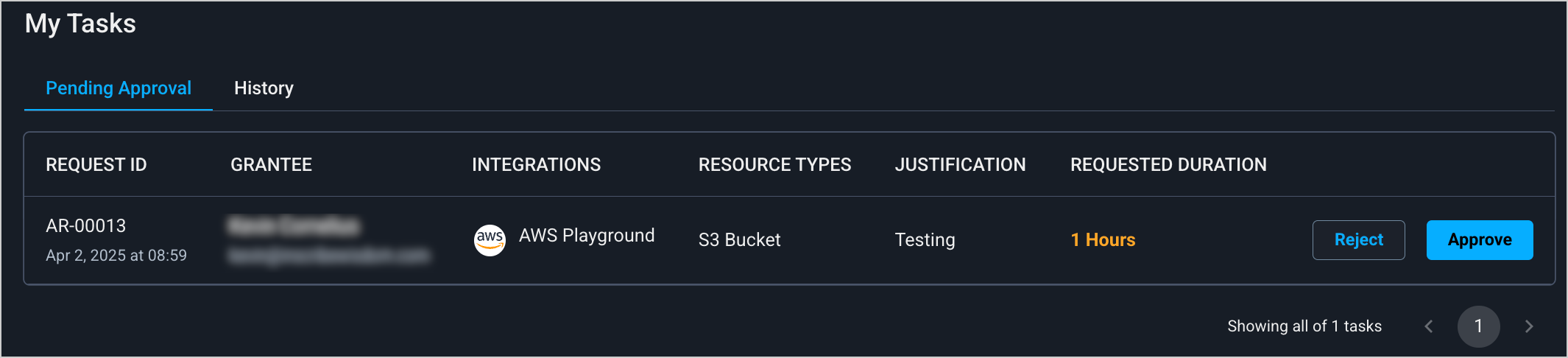
<figure><img src="https://lh7-rt.googleusercontent.com/docsz/AD_4nXeW-2ilhE1Tu188FVnwU1koyf1tHqyOSanO3Jji4ToVsRANA-VjU45AQ9v4IIqp0xrDfmsivPGvGKIM0KuP8jatUooqkz0azWL1cfXA_shYr6a51j-vTdWZ8aNhzqmDHaTmAderQQ?key=P0MeRYT6dDXWWkQwR_GoKF07" alt=""><figcaption><p>My Tasks page</p></figcaption></figure>

Follow these steps to approve a request:

1. On the [**My Tasks**](https://portal.apono.io/tasks) page, click the **Pending Approval** tab. A list of requests requiring your review appears.
2. Click the row of the open request. The request details panel opens for you to review the details of the request.
3. Click **Approve**. The **Please provide a reason for approval** popup window appears.
4. Enter a **Reason**. The approval reason must be less than **124** characters.

{% hint style="info" %}
If the [**Require Approve Reason**](/docs/access-flows/creating-access-flows-in-apono/self-serve-access-flows.md#enable-settings) setting has been enabled for the access flow, you will be required to enter a reason.
{% endhint %}

5. Click **Approve Request**. The requester will see the approved request and the remaining access duration on the [**Open Requests**](https://portal.apono.io/requests/open) tab.
{% hint style="warning" %}
Requests pending approval for over 7 days become Failed automatically.
{% endhint %}


---

# Agent Instructions
This documentation is published with GitBook. GitBook is the documentation platform designed so that both humans and AI agents can read, navigate, and reason over technical content effectively. Learn more at gitbook.com.

## Querying This Documentation
If you need additional information that is not directly available in this page, you can query the documentation by asking a question.

Perform an HTTP GET request on the following URL with the `ask` and `goal` query parameters:

```
GET https://docs.apono.io/docs/access-requests-and-approvals/web-portal/approving-access-with-web-portal.md?ask=<question>&goal=<user_goal>
```

`ask` is the immediate question: it should be specific, self-contained, and written in natural language.
`goal` is what the user is ultimately trying to achieve, the reason they need the answer. Sharing it helps GitBook give you a better, more relevant answer. A goal is most helpful when it describes the outcome the user wants rather than restating the question. For example, with `ask=how do I create an API token`, a goal like `automate deployments from our CI pipeline` lets GitBook tailor the answer to that use case.

The response will contain a direct answer to the question and relevant excerpts and sources from the documentation.

Use this mechanism when the answer is not explicitly present in the current page, you need clarification or additional context, or you want to retrieve related documentation sections.
