> For the complete documentation index, see [llms.txt](https://docs.apono.io/llms.txt). Markdown versions of documentation pages are available by appending `.md` to page URLs; this page is available as [Markdown](https://docs.apono.io/docs/additional-integrations/databases-and-data-repositories/aws-documentdb.md).

# AWS DocumentDB

The AWS DocumentDB integration helps you to securely discover and manage your AWS DocumentDB resources through Apono.

After integrating AWS DocumentDB with Apono, you'll be able to:

* Automate resource discovery and mapping across your AWS DocumentDB infrastructure
* Enable administrators to implement just-in-time, least-privilege access policies and securely manage permissions
* Allow users to request temporary access to specific **clusters** and **databases**

***

### Prerequisites

<table><thead><tr><th width="260">Item</th><th>Description</th></tr></thead><tbody><tr><td><strong>Apono Connector</strong></td><td><p>On-prem connection serving as a bridge between an AWS DocumentDB cluster and Apono:</p><ul><li><a href="/pages/U4HFH35XWDo3jyqhJqgQ">AWS</a></li><li><a href="/pages/ztAsRPKJcMNxeQKE2GNB">Azure</a></li><li><a href="/pages/xPrzAcLGsoliEpPJuozp">GCP</a></li><li><a href="/pages/p5PzUV4THznqePSTYgEH">Kubernetes</a></li></ul></td></tr><tr><td><strong>AWS DocumentDB Information</strong></td><td><p>Information for the AWS DocumentDB cluster to be integrated:</p><ul><li>Hostname</li><li>Port</li></ul><p>This information can be obtained from a <a href="https://docs.aws.amazon.com/documentdb/latest/devguide/db-cluster-endpoints-find.html">connection string</a>.</p></td></tr><tr><td><strong>AWS DocumentDB Access</strong></td><td>Primary user or another user account with permission to create users</td></tr></tbody></table>

***

### Create a user

You must create an AWS DocumentDB user for the Apono connector.

Follow these steps to create a user:

1. In your AWS DocumentDB cluster, switch to the admin database.

```mongodb
use admin;
```

2. Create a user (`user`) and password (`pwd`) for the Apono connector.

{% hint style="info" %}
For more information on creating a user, refer to Amazon's [Managing Amazon DocumentDB users](https://docs.aws.amazon.com/documentdb/latest/devguide/security.managing-users.html).
{% endhint %}

```mongodb
db.createUser({
    user: "apono-connector",
    pwd: "password",
    roles: [
        {
            "role" : "clusterMonitor",
            "db" : "admin"
        },
        {
            "role" : "userAdminAnyDatabase",
            "db" : "admin"
        },
        {
            "role" : "readWriteAnyDatabase",
            "db" : "admin"
        },
        {
            "role" : "clusterManager",
            "db" : "admin"
        }
    ]
});
```

3. [Create a secret](/docs/connectors-and-secrets/apono-integration-secret.md) with the credentials from step **2**.\
   \
   Use the following key-value pair structure when generating the secret. Be sure to replace `#PASSWORD` with the actual value. If you used a different name for the user, replace `apono-connector` with the name you assigned to the user.

```json
"username": "apono-connector",
"password": "#PASSWORD"
```

{% hint style="success" icon="lightbulb" %}
You can also input the user credentials directly into the Apono UI during the [integration process](#integrate-mongodb).
{% endhint %}

***

### Integrate AWS DocumentDB

{% hint style="success" icon="lightbulb" %}
You can also use the steps below to integrate with Apono using Terraform.

In step **12**, instead of clicking **Confirm**, follow the **Are you integrating with Apono using Terraform?** guidance.
{% endhint %}

Follow these steps to complete the integration:

1. On the [**Catalog**](https://app.apono.io/catalog?search=aws-documentdb) tab, click **AWS DocumentDB**. The **Connect Integration** page appears.
2. Under **Discovery**, select one or multiple resource types.

{% hint style="info" %}
Apono automatically discovers and syncs all the instances in the environment. After syncing, you can manage access flows to these resources.
{% endhint %}

3. Click **Next**. The **Apono connector** section expands.
4. From the dropdown menu, select a connector. Choosing a connector links Apono to all the services available on the account where the connector is located.

{% hint style="success" %}
If the desired connector is not listed, click **New connector** and follow the instructions for creating a connector ([AWS](/docs/aws-environment/apono-connector-for-aws.md), [Azure](/docs/azure-environment/apono-connector-for-azure.md), [GCP](/docs/gcp-environment/apono-connector-for-gcp.md), [Kubernetes](/docs/kubernetes-environment/apono-connector-for-kubernetes.md)).
{% endhint %}

5. Click **Next**. The **Integration Config** section expands.
6. Define the **Integration Config** settings.

   <table><thead><tr><th width="224">Setting</th><th>Description</th></tr></thead><tbody><tr><td><strong>Integration Name</strong></td><td>Unique, alphanumeric, user-friendly name used to identify this integration when constructing an access flow</td></tr><tr><td><strong>Hostname</strong></td><td>Cluster endpoint for the AWS DocumentDB cluster</td></tr><tr><td><strong>Port</strong></td><td><p>Network port the AWS DocumentDB cluster is listening on for connections</p><p>By default, AWS DocumentDB uses port <em>27017</em>.</p></td></tr></tbody></table>
7. Click **Next**. The **Secret Store** section expands.
8. [Associate the secret or credentials](/docs/connectors-and-secrets/apono-integration-secret.md).

   <div data-gb-custom-block data-tag="hint" data-style="info" class="hint hint-info"><p>If you select the Apono secret manager, enter the AWS DocumentDB <strong>Username</strong> and <strong>Password</strong> for the Apono Connector.</p></div>
9. Click **Next**. The **Get more with Apono** section expands.
10. Define the **Get more with Apono** settings.

    <table><thead><tr><th width="224">Setting</th><th>Description</th></tr></thead><tbody><tr><td><strong>Credential Rotation</strong></td><td>(Optional) Number of days after which the database credentials must be rotated<br><br>Learn more about the <a href="/pages/UsMtClaCM1SlvPsARUsM">Credentials Rotation Policy</a>.</td></tr><tr><td><strong>User cleanup after access is revoked (in days)</strong></td><td><p>(Optional) Defines the number of days after access has been revoked that the user should be deleted</p><p><br>Learn more about <a href="/pages/zJwQEG15iEhbPYg9hpqp">Periodic User Cleanup &#x26; Deletion</a>.</p></td></tr><tr><td><strong>Custom Access Details</strong></td><td>(Optional) Instructions explaining how to access this integration's resources<br><br>Upon accessing an integration, a message with these instructions will be displayed to end users in the User Portal. The message may include up to <strong>400 characters</strong>.<br><br>To view the message as it appears to end users, click <strong>Preview</strong>.</td></tr><tr><td><strong>Integration Owner</strong></td><td><p>(Optional) Fallback approver if no <a href="/pages/Ey4wuziyr2BzKYQnd5am">resource owner</a> is found<br><br>Follow these steps to define one or several integration owners:</p><ol><li>From the <strong>Attribute</strong> dropdown menu, select <strong>User</strong> or <strong>Group</strong> under the relevant identity provider (IdP) platform.</li><li>From the <strong>Value</strong> dropdown menu, select one or multiple users or groups.</li></ol><p><br><strong>NOTE</strong>: When <strong>Resource Owner</strong> is defined, an <strong>Integration Owner</strong> must be defined.</p></td></tr><tr><td><strong>Resource Owner</strong></td><td><p>(Optional) Group or role responsible for managing access approvals or rejections for the resource<br><br>Follow these steps to define one or several <a href="/pages/Ey4wuziyr2BzKYQnd5am">resource owners</a>:</p><ol><li>Enter a <strong>Key name</strong>. This value is the name of the tag created in your cloud environment.</li><li>From the <strong>Attribute</strong> dropdown menu, select an attribute under the IdP platform to which the key name is associated.<br><br>Apono will use the value associated with the key (tag) to identify the resource owner. When you update the membership of the group or role in your IdP platform, this change is also reflected in Apono.</li></ol><p><br><strong>NOTE</strong>: When this setting is defined, an <strong>Integration Owner</strong> must also be defined.</p></td></tr></tbody></table>
11. (Recommended) Click **Test Integration** to validate the integration.

{% hint style="info" %}
**Test Integration** is available after you have entered or selected values for all required integration fields.

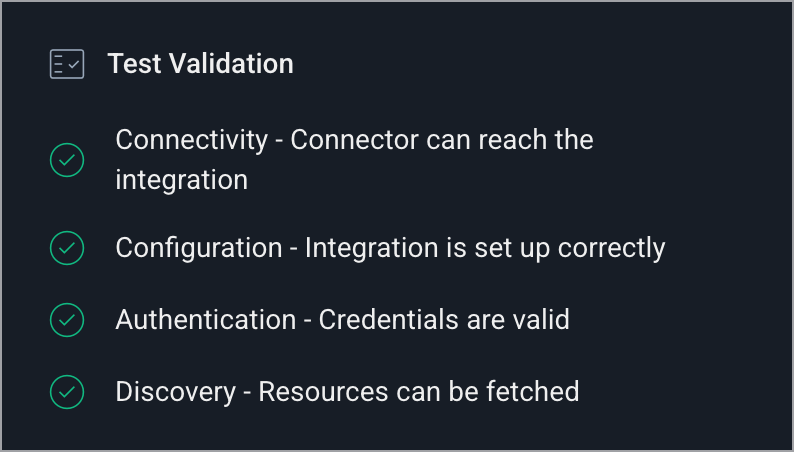
During the test, Apono runs the following validation checks:

* **Connectivity:** The connector can reach the integration.
* **Configuration:** The integration is set up correctly.
* **Authentication:** The credentials are valid.
* **Discovery:** Resources can be fetched.

The **Test Validation** checklist shows the result of each check.

<img src="/files/ODqRkUwvqKuEtRqYQKaz" alt="" data-size="original">

If a check fails, Apono identifies the failed check and highlights the fields that need correction.
{% endhint %}

12. Click **Confirm**.

<details>

<summary>💡Are you integrating with Apono using Terraform?</summary>

If you want to integrate with Apono using Terraform, follow these steps instead of clicking **Confirm**:

1. At the top of the screen, click **View as Code**. A modal appears with the completed Terraform configuration code.
2. Click to copy the code.
3. Make any additional edits.
4. Deploy the code in your Terraform.

Refer to [Integration Config Metadata](https://docs.apono.io/metadata-for-integration-config/integration-metadata/aws-documentdb) for more details about the schema definition.

</details>

#### Usage

Now that the integration is complete, you can add AWS DocumentDB clusters and databases as resources in an access flow. This allows requesters to securely request temporary access to those resources based on your approval and provisioning rules.

Follow the guidance in these articles to define AWS DocumentDB resources:

* [Define the resource (Self Serve Access Flows)](/docs/access-flows/creating-access-flows-in-apono/self-serve-access-flows.md#define-the-resource)
* [Define the resource (Automatic Access Flows)](/docs/access-flows/creating-access-flows-in-apono/automatic-access-flows.md#define-the-resource)


---

# Agent Instructions
This documentation is published with GitBook. GitBook is the documentation platform designed so that both humans and AI agents can read, navigate, and reason over technical content effectively. Learn more at gitbook.com.

## Querying This Documentation
If you need additional information that is not directly available in this page, you can query the documentation dynamically by asking a question.

Perform an HTTP GET request on the current page URL with the `ask` query parameter, and the optional `goal` query parameter:

```
GET https://docs.apono.io/docs/additional-integrations/databases-and-data-repositories/aws-documentdb.md?ask=<question>&goal=<endgoal>
```

`ask` is the immediate question: it should be specific, self-contained, and written in natural language.
`goal` is optional and describes the broader end goal you are ultimately trying to accomplish on behalf of the user. GitBook uses it to tailor the answer towards what is most useful for that goal.

The response will contain a direct answer to the question and relevant excerpts and sources from the documentation.

Use this mechanism when the answer is not explicitly present in the current page, you need clarification or additional context, or you want to retrieve related documentation sections.