> For the complete documentation index, see [llms.txt](https://docs.apono.io/llms.txt). Markdown versions of documentation pages are available by appending `.md` to page URLs; this page is available as [Markdown](https://docs.apono.io/docs/audits-and-reports/requests-audit/create-reports.md).
# Create Reports
Learn how to build custom reports
**Reports** transform your **Activity** page data into customizable exports with precise filters.
By default, reports capture the last 30 days of activity data across all columns in CSV format. You can customize this using various filters and options:
* **Time Range**: Choose between relative periods (last 7 days) or absolute date ranges
* **Access Filters**: Filter by specific grantees, integrations, permissions, and risk levels
* **Column Selection**: Control which data columns appear in your exports
* **Format Options**: Generate reports in CSV or PDF formats
Apono's reports serve as access review documentation that meets compliance requirements:
* **SOC 2**: Access oversight & audit trails
* **GDPR & HIPAA**: PII protection & access monitoring
* **PCI DSS & SOX**: Secure handling of financial data & reporting
You can schedule or generate on demand reports to support quarterly audits, compliance reporting, and security reviews.
***
### Create a report
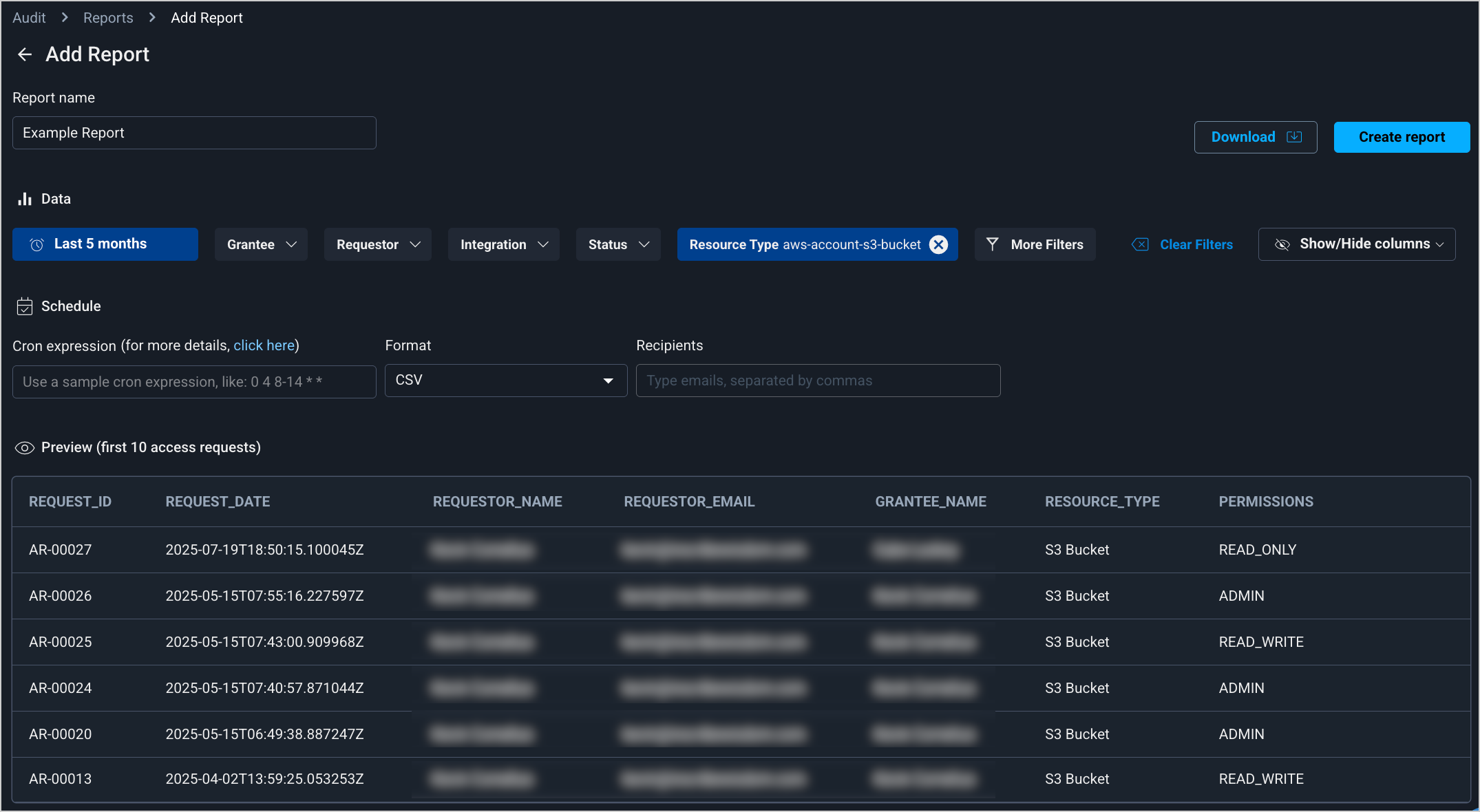
Add Report page
Follow these steps to create a report:
1. On the [**Reports**](https://app.apono.io/reports) tab, click **Create Report**. The **Add Report** page opens.
2. Enter a **Report name**.
3. (Optional) Set the date range. **Last 30 days** is the default date range.
Last 30 days
**Relative**
Follow these steps to set a relative date range:
1. Click **All Time**, the date range settings appear.
2. On the **Relative** tab, from the **Last** dropdown menu, select a time measure.
3. In the **Last** text field, enter a number.
4. (Optional) Click **Round to the hours|days|months** to begin the time filtering from the nearest hour, day, or month.
5. Click **Apply**. The filter turns blue and shows a summary.
6. Click the top or outside of the dropdown menu to close it.
\
**Absolute**
Follow these steps to set an absolute date range:
1. Click **All Time**, the date range settings appear.
2. On the **Absolute** tab, under **From**, select start date:
* Select the start date from the date picker.
* Select the start time (local system time) from the time picker.
3. Under **To**, select the end date:
* Select the end date from the date picker.
* Select the end time (local system time) from the time picker.
4. (Optional) Click **Use UTC** to apply the Coordinated Universal Time (UTC) timezone to the start and end times instead of the local system time.
5. Click **Apply**. The filter turns blue and shows a summary.
6. Click the top or outside of the dropdown menu to close it.
4. Filter the report data:
1. Click a dropdown menu. (NOTE: To access additional filters, click **More Filters** and choose a filter.)
2. (Optional) In the **Search** field, enter a value to filter the options, if applicable.
3. Select one or more options. The sample report results will be filtered.
4. Click the top or outside of the dropdown menu to close it. The filter turns blue and shows a summary.
5. (Optional) Repeat steps **4a-c** to add more criteria to filter the report results.
{% hint style="info" %}
As you apply filters, a sample of the report information appears and updates in real time under **Preview (first 10 access requests)**. One access request may have multiple rows of data.
{% endhint %}
5. From the **Show/Hide columns** dropdown menu, select at least one column of data to display in the report.
6. (Optional) Select the **Report Format**. CSV is the default format.
* **CSV**: (Default) Best for internal analysis, integrations, or bulk data processing
* **PDF**: Recommended for compliance reporting that requires data immutability and integrity
7. Click **Create report**. The report will be saved and listed on the **Reports** tab.
After creating a report, you can [manage the report](/docs/audits-and-reports/requests-audit/manage-reports.md).
---
# Agent Instructions
This documentation is published with GitBook. GitBook is the documentation platform designed so that both humans and AI agents can read, navigate, and reason over technical content effectively. Learn more at gitbook.com.
## Querying This Documentation
If you need additional information that is not directly available in this page, you can query the documentation by asking a question.
Perform an HTTP GET request on the following URL with the `ask` and `goal` query parameters:
```
GET https://docs.apono.io/docs/audits-and-reports/requests-audit/create-reports.md?ask=&goal=
```
`ask` is the immediate question: it should be specific, self-contained, and written in natural language.
`goal` is what the user is ultimately trying to achieve, the reason they need the answer. Sharing it helps GitBook give you a better, more relevant answer. A goal is most helpful when it describes the outcome the user wants rather than restating the question. For example, with `ask=how do I create an API token`, a goal like `automate deployments from our CI pipeline` lets GitBook tailor the answer to that use case.
The response will contain a direct answer to the question and relevant excerpts and sources from the documentation.
Use this mechanism when the answer is not explicitly present in the current page, you need clarification or additional context, or you want to retrieve related documentation sections.