# Session History
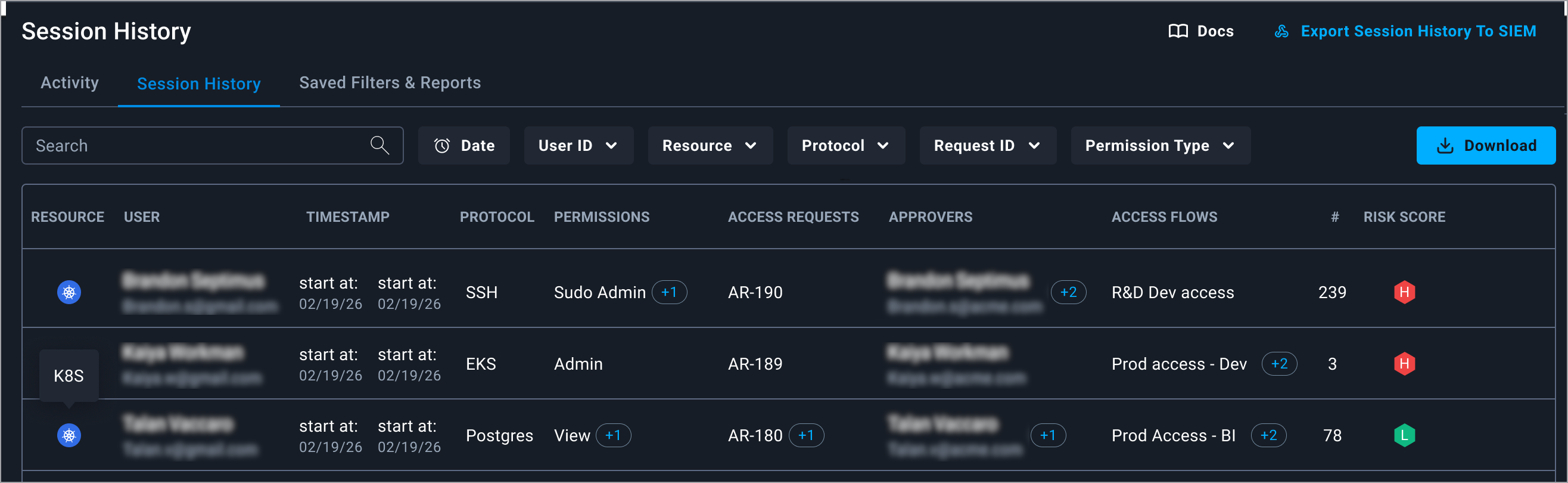
The **Session History** tab provides a centralized view of all audited sessions across your integrations. You can use it to review session activity, filter results, and download the session metadata report.
Session History tab
This tab displays session metadata for each audited session, including:
* User (identity)
* Resource
* Protocol
* Session start / end time
* Access Request ID
* Permissions
* Approvers
* Access flow
* Number of events
* Risk Score
{% hint style="info" %}
To access the **Session History** tab, Session Audit must be enabled for supported integrations and their Apono connectors.
\
Learn more about [Session Audit](https://docs.apono.io/docs/audits-and-reports/session-audit).
{% endhint %}
***
### Filter the session history
Filters operate on the metadata stored in Apono. Multiple filters can be combined. Filtering the session history can be used to generate a compliance evidence report.
Filtered sessions on the Session History tab
Follow these steps to filter the session list:
1. On the **Session History** tab, set the date range to refine the list of sessions. By default, all sessions are listed.
All Time
**Relative**
Follow these steps to set a relative date range:
1. Click **All Time**, the date range settings appear.
2. On the **Relative** tab, from the **Last** dropdown menu, select a time measure.
3. In the **Last** text field, enter a number.
4. (Optional) Click **Round to the hours|days|months** to begin the time filtering from the nearest hour, day, or month.
5. Click **Apply**. The filter turns blue and shows a summary.
6. Click the top or outside of the dropdown menu to close it.
**Absolute**
Follow these steps to set an absolute date range:
1. Click **All Time**, the date range settings appear.
2. On the **Absolute** tab, under **From**, select a start date:
1. Select the start date from the date picker.
2. Select the start time (local system time) from the time picker.
3. Under **To**, select the end date:
1. Select the end date from the date picker.
2. Select the end time (local system time) from the time picker.
4. (Optional) Click Use **UTC** to apply the Coordinated Universal Time (UTC) timezone to the start and end times instead of the local system time.
5. Click **Apply**. The filter turns blue and shows a summary.
6. Click the top or outside of the dropdown menu to close it.
2. Click a filter dropdown menu.
3. (Optional) In the **Search** field, enter a value to filter the options.
4. Select one or more options. The list of sessions will be filtered.
5. Click the top or outside of the dropdown menu to close it. The filter turns blue and shows a summary.
6. (Optional) Repeat steps **2-5** to add more criteria to filter the Session History list.
***
### Download a session report
Admins can download a compliance evidence report for a filtered set of sessions.
{% hint style="info" %}
he report will only contain session metadata, such as session ID, user, resource, protocol, timestamps, and request ID.
{% endhint %}
Follow these steps to generate and download the report:
1. [Filter the session history](#filter-the-session-history).
2. Click **Download**. The **Download Report** pop-up window appears.
3. Enter a **File name**.
4. (Optional) Select the report format. **CSV** is the default format.
* **CSV**: (Default) Best for internal analysis, integrations, or bulk data processing
* **JSON**: Best for programmatic processing or when preserving full data structure (nested fields and metadata)
5. Click **Download**. When the report has been generated, a notification will appear.
{% hint style="info" %}
The notification will appear on the currently active page in the Apono UI. The completed report will be listed on the **Reports** tab.
{% endhint %}
The report includes session metadata enriched with Apono context, such as human user identity, approver, and access flow.