# Logz.io

Logz.io collects and analyze logs, metrics, and traces, combined with human-powered AI/ML features through a SaaS-based data analytics platform.

***

### Prerequisite

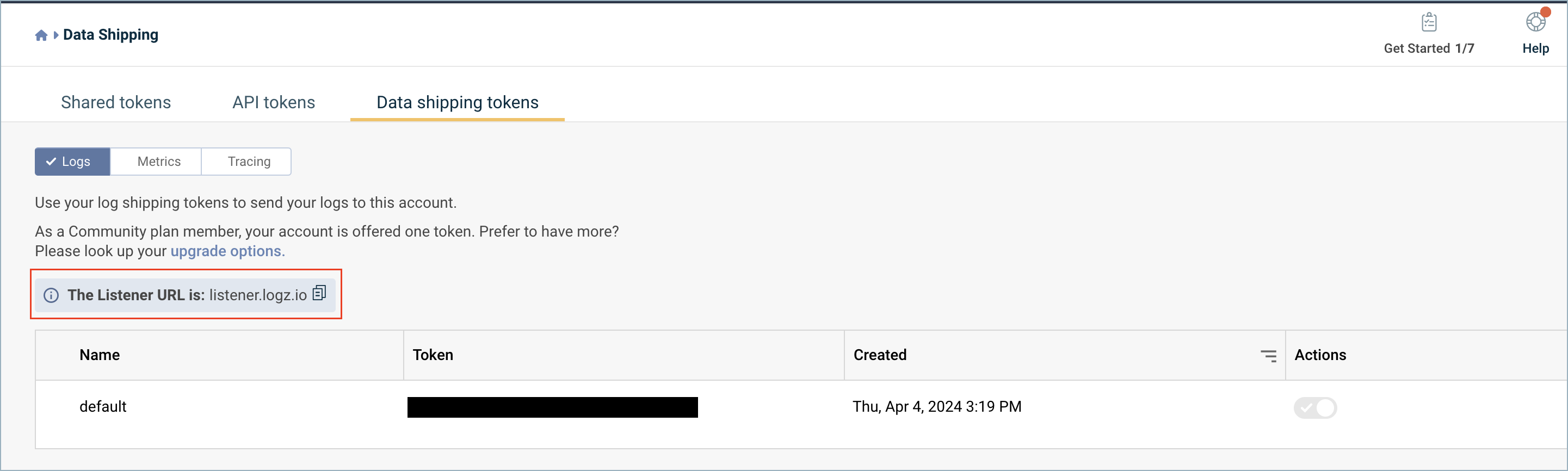
<table><thead><tr><th width="291">Item</th><th>Description</th></tr></thead><tbody><tr><td><strong>Permissions</strong></td><td>Admin user for Logz.io account</td></tr><tr><td><strong>Logz.io log shipping token</strong></td><td>Used in shipper configurations to direct data to the relevant Logz.io account. Get your Logz.io log shipping token in the <strong>ADMIN ZONE</strong> section of the side navigation menu <strong>Settings > Manage tokens > Data shipping tokens tab</strong></td></tr><tr><td><strong>Logz.io Listener URL</strong></td><td>The Listener URL for your account is displayed above the token table.</td></tr></tbody></table>

Logz.io Listener URL location:

<figure><img src="https://1094436629-files.gitbook.io/~/files/v0/b/gitbook-x-prod.appspot.com/o/spaces%2Fv6MBfUGvblSdAz31yJXm%2Fuploads%2Fgit-blob-c231fee7e6c16e1c9de2780cd2e4e5a9eee5bf11%2Flogz-io-1.png?alt=media" alt="" width="563"><figcaption></figcaption></figure>

***

### Creating the webhook

Follow these steps to configure an Apono webhook:

1. On the [**Webhooks**](https://app.apono.io/webhooks) page, click **Add Webhook**. The **Add Webhook** page appears.
2. Click **Request Webhook**.
3. Enter a unique, alphanumeric, user-friendly **Request Webhook Name** for identifying this webhook.
4. Click the **Status** toggle to **Active**.
5. From the **Method** dropdown menu, select **POST**.
6. In the **URL** field, enter *https\://\<LISTENER\_URL>?token=\<LOG\_SHIPPING\_TOKEN>*.\
   \
   Be sure to replace the `<LISTENER_URL>` and `<LOG_SHIPPING_TOKEN>` placeholders.

{% hint style="warning" %}
The webhook URL **must adhere** to the following requirements:

* Uses the HTTPS protocol
* Does **not** specify any custom ports
  {% endhint %}

7. In the **Body Template** field, construct a JSON body for the webhook payload.

{% code overflow="wrap" %}

```json
{"message": "{ "event_type": "{{ event_type }}", "event_time": "{{ event_time }}", "id": "{{ data.id }}", "friendly_id": "{{ data.friendly_id }}", "requester_id": "{{ data.requester.id }}", "requester_name": "{{ data.requester.name }}", "requester_email": "{{ data.requester.email }}", "justification": "{{ data.justification }}", "creation_date": "{{ data.creation_date }}", "access_flow_id": "{{ data.access_flow.id }}", "access_flow_name": "{{ data.access_flow.name }}", "access_bundle_id": "{{ data.access_bundle.id }}", "access_bundle_name": "{{ data.access_bundle.id }}", "access_groups_integration_name": "{{ data.access_groups.[0].integration.name }}", "access_groups_integration_type": "{{ data.access_groups.[0].integration.type }}"}", "type": "Apono"}
```

{% endcode %}

{% hint style="success" %}
Click **View event's payload schema** to reveal the payload schema and available data fields. You can also refer to the [Webhook Payload Schema Reference](https://docs.apono.io/docs/webhook-integrations/webhook-payload-references/webhook-payload-schema-reference) to read the descriptions of each data field.
{% endhint %}

8. From the **Triggers** dropdown menu, select one or more of the following event triggers, which correspond to Apono access request statuses:
   * **RequestCreated**
   * **RequestApproved**
   * **RequestExpired**
   * **RequestFailed**
   * **RequestGranted**
   * **RequestRejected**
9. Under **Filters**, define one or several filter from the listed dropdown menus.

{% hint style="info" %}
Filters empower admins to control the data transmitted via webhooks, minimizing the amount of data third-party tools receive and reducing unnecessary clutter.

**Examples**:

* Send only production requests to your admins' Slack channel.
* Trigger Okta workflows for events from specific integrations or resource types.
* Open a ticket in Jira or ServiceNow for manually approved requests.
  {% endhint %}

10. (Optional) In the **Timeout in seconds** field, enter the duration in seconds to wait before marking the request as failed.
11. (Optional) Define **Response Validators** to verify that the response from the webhook meets specified criteria:
    1. Click **+ Add**. A row of settings appears.
    2. Starting with *$.data.*, enter the **Json Path** of the JSON parameter.
    3. In the **Expected Values** field, enter a value and press the Enter key on your keyboard.
    4. Repeat step **c** to add several expected values.
    5. Repeat steps **a-d** to add multiple response validators.
12. Click **Test** to generate a test event to trigger your webhook. A **Test successful** or **Test failed** response status will appear at the bottom of the page. A successful test will send mock data to the target system.

{% hint style="success" %}
For more information about the test, click **View Invocation Data**. A panel opens revealing the request, response, and other relevant details.

Should your test fail, view these tips to [troubleshoot your webhook](https://docs.apono.io/docs/webhook-integrations/troubleshoot-a-webhook).
{% endhint %}

13. Click **Save Webhook**.

The new webhook appears in the **Webhooks** table. Active webhooks are preceded by a green dot. Inactive webhooks are preceded by a white dot.

Apono access request logs will be sent to Logz.io based on the triggers you have selected.

***

### Results

Your webhook should now start sending logs to Logz.io in the relevant account once triggered:

![](https://files.readme.io/7afcfa6-image.png)

![](https://files.readme.io/532c45e-image.png)
