| Item | Description |
|---|---|
| Apono Connector | On-prem connection serving as a bridge between your organization and Apono: |
| Agent Privilege Guard | Agent Privilege Guard is enabled for your organization. |
| Setting | Description |
|---|---|
| Integration Name | Unique, alphanumeric, user-friendly name used to identify this integration when constructing an access flow Example: Custom |
| Setting | Description |
|---|---|
| Custom Access Details | (Optional) Instructions explaining how to access this integration's resources Upon accessing an integration, a message with these instructions will be displayed to end users in the User Portal. The message may include up to 400 characters. To view the message as it appears to end users, click Preview. |
| Integration Owner | (Optional) Fallback approver if no resource owner is found
|
| Resource Owner | (Optional) Group or role responsible for managing access approvals or rejections for the resource
|
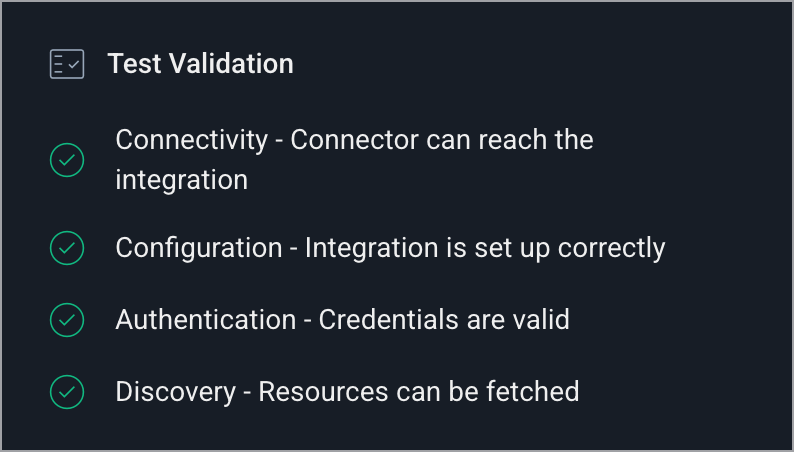 If a check fails, Apono identifies the failed check and highlights the fields that need correction.
{% endhint %}
9. Click **Confirm**.
Now that you have completed the integration, you can [create an agentic access flow](/docs/agent-privilege-guard/set-up-apono-agent-privilege-guard/apono-agent-privilege-guard-for-custom-mcps.md#create-an-agentic-access-flow) that grants permission to your organization's resources.
---
# Agent Instructions
This documentation is published with GitBook. GitBook is the documentation platform designed so that both humans and AI agents can read, navigate, and reason over technical content effectively. Learn more at gitbook.com.
## Querying This Documentation
If you need additional information that is not directly available in this page, you can query the documentation dynamically by asking a question.
Perform an HTTP GET request on the current page URL with the `ask` query parameter, and the optional `goal` query parameter:
```
GET https://docs.apono.io/docs/additional-integrations/mcps/custom-mcp.md?ask=
If a check fails, Apono identifies the failed check and highlights the fields that need correction.
{% endhint %}
9. Click **Confirm**.
Now that you have completed the integration, you can [create an agentic access flow](/docs/agent-privilege-guard/set-up-apono-agent-privilege-guard/apono-agent-privilege-guard-for-custom-mcps.md#create-an-agentic-access-flow) that grants permission to your organization's resources.
---
# Agent Instructions
This documentation is published with GitBook. GitBook is the documentation platform designed so that both humans and AI agents can read, navigate, and reason over technical content effectively. Learn more at gitbook.com.
## Querying This Documentation
If you need additional information that is not directly available in this page, you can query the documentation dynamically by asking a question.
Perform an HTTP GET request on the current page URL with the `ask` query parameter, and the optional `goal` query parameter:
```
GET https://docs.apono.io/docs/additional-integrations/mcps/custom-mcp.md?ask=